
Practical guides for independent tutors
Prepaid vs postpaid tutoring: track lessons and payments
In brief
Prepaid tutoring starts with a payment for future lessons; postpaid tutoring creates an amount to collect after teaching. Track completed lessons, money received and the remaining balance separately. A completed lesson is not proof of payment, and a prepaid receipt should be counted only once.
Put it into practice
- Write down the agreed rate, package size or billing interval, due date and cancellation terms before teaching. Use one currency per record.
- After teaching, record the completed lesson. For a prepaid package, reduce lessons remaining; for a postpaid class, add the agreed amount due. Record an actual payment separately when it arrives.
- Review weekly: compare received amounts with your payment records, follow up on pending amounts, and check low package balances. Keep corrections traceable instead of silently replacing an earlier receipt.
Worked example
A student pays USD 200 for five lessons. After the first completed lesson, USD 200 has been received and four lessons remain; the lesson does not create another USD 40 receipt. With a USD 40 postpaid class, the amount pending is USD 40 until payment arrives, then zero.
Fictional examples. USD amounts illustrate record keeping, not app prices. Apply the terms agreed with your client.
Keep lessons, money received and amounts pending separate
The examples below use fictional students and USD amounts. They show record keeping, not the app's subscription price. A teaching event and a payment event may happen on different days.
| Event | Prepaid: five lessons for USD 200 | Postpaid: USD 40 per lesson |
|---|---|---|
| Payment before teaching | USD 200 received; five lessons available | No payment received |
| First lesson completed | Four lessons remain; total received stays USD 200 | USD 40 pending; USD 0 received |
| Payment for the postpaid lesson arrives | No change to the prepaid student's record | USD 40 received; USD 0 pending |
| Weekly review | Check the remaining package balance against completed lessons | Match the payment received to the lesson that created the amount due |
A payment-record workflow in Tutor Planner
- Keep the agreed prepaid package or postpaid arrangement with the relevant student's records.
- Use the schedule to find the lesson. After teaching, record its completion and check the resulting package or postpaid record.
- Record money when it actually arrives. Check the student's balance and pending payments rather than treating every completed class as paid.
- For a weekly business review, Pro reports bring together cash income, pending payments and teaching activity. Trace an unexpected total back to the underlying student and lesson records.

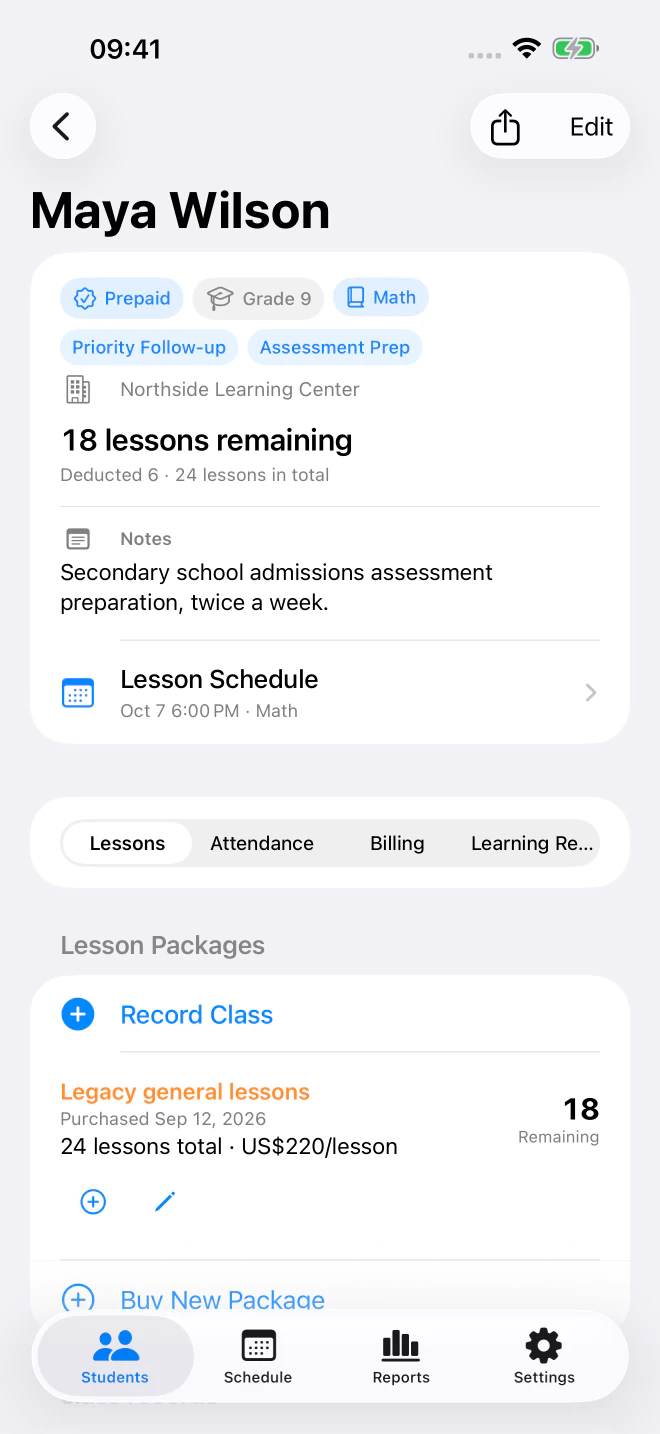
Read a real package balance: 24 purchased, 6 used, 18 left
This walkthrough uses Tutor Planner 2.1 (27) with fictional demonstration students. It is separate from the five-lesson example above and is not a customer case study.
Open Students, choose Maya Wilson, then select Lessons. The student summary shows 24 lessons in total, 6 deducted and 18 remaining. The package card below identifies the package. Read the balance as lesson credits, not money available to spend.
After recording a completed class, check the lesson quantity deducted and the resulting package balance. A normal one-credit deduction from 18 leaves 17; a half-credit deduction leaves 17.5. The screenshot shows the starting balance of 18, not either of those later events. Use the agreed lesson quantity rather than assuming every calendar entry consumes one credit.
Record a partial payment: USD 270 due becomes USD 170
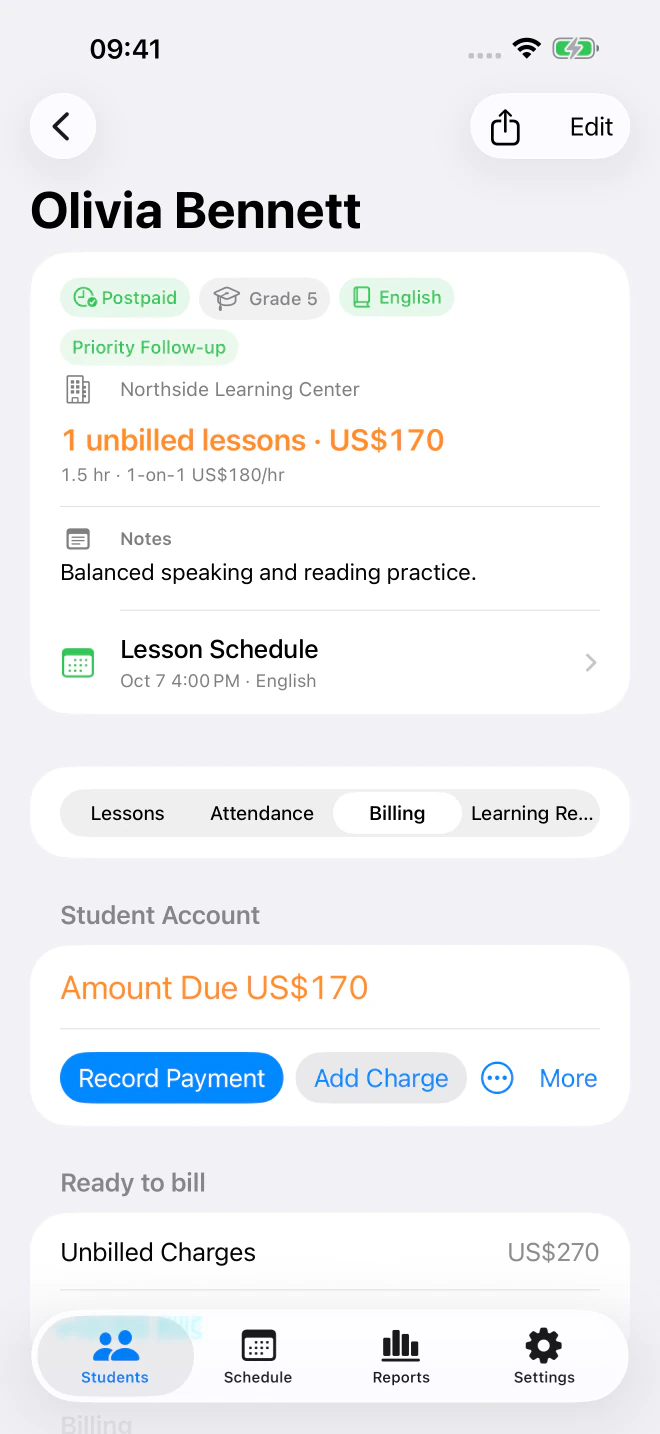
In this second demonstration, Olivia Bennett has a postpaid lesson charge of USD 270: 1.5 hours at USD 180 per hour. These are sample teaching rates, not the price of Tutor Planner.
Open Olivia's student record and select Billing. Before the payment, Amount Due is USD 270. Choose Record Payment, enter 100 as the amount actually received, check the date, and save. The account now shows USD 170 due. Saving this record does not charge a card or transfer money.
Unbilled Charges can still show USD 270 after the payment. It describes charges that have not yet been put into a bill; Amount Due describes money still outstanding. Do not add the two figures together or record another USD 270 payment just to clear the unbilled figure.
| Event | New charge | Money received in this event | Amount still due |
|---|---|---|---|
| Completed lesson: 1.5 hours × USD 180 | USD 270 | USD 0 | USD 270 |
| Record the first payment | USD 0 | USD 100 | USD 170 |
| Later, if the remaining payment arrives | USD 0 | USD 170 | USD 0 |
Reconcile the week without counting a payment twice
The CSV is a standalone example with event amounts and an outstanding-balance column. It is not an import file for Tutor Planner. Sum new charges and payments separately; read the latest outstanding balance rather than summing that column. The final row is clearly marked as a hypothetical later payment.
Student records and basic payment tracking are available within the free tier of up to three active students. Pro is needed for full business reports and schedule image/PDF exports. No separate Tutor Planner account is required.
- For a prepaid student, compare purchased lesson credits with the credits used. Check which package each record belongs to.
- For a postpaid student, compare the original charges, payments actually received and the current amount due. A bill documents charges; it is not evidence that money arrived.
- If a payment was entered incorrectly, inspect the account history before recording anything else. Use the entry's correction workflow; do not add the same payment a second time.
- Keep a separate note of rescheduling or cancellation decisions. A calendar change alone does not tell you whether a charge, credit or refund is appropriate.
Handle changes without losing the original event
A cancelled lesson is not automatically a refund or an unpaid lesson. Apply the terms agreed with the client, then review the lesson record and the payment record separately. A refund, correction or package change needs its own reconciliation; do not count the original payment twice.
If a balance looks wrong, check the student's starting package, completed classes and actual payments in that order. The app records your tutoring work; the examples here are not a demonstration of automatic card charging or a replacement for your accounting records.
What to do next
Use the billing page's free English CSV for a manual record, or connect package balances and postpaid records to students in Tutor Planner. Follow your agreed cancellation terms; these examples do not calculate tax or replace accounting records.
Download payment tracker (English CSV)
- Tutor Billing and Lesson Package Tracker
- Tutor Business Reports for Independent Tutors
- Tutor income calculator
Sources and product details
Choose the workflow that fits your teaching. Product details are based on the current App Store listing and the linked feature pages.